Features

Inventory in, inventory out, on boards.

Each direction is a pipeline of stages. Cards move left to right, and the automation between boards keeps inventory and billing honest, whatever you sell.

  1. 01ReceivingOne card per truck. Count it, photograph it, verify it.
  2. 02Live inventoryInventory Logged posts counts. Products Picked deducts them.
  3. 03Delivery & PickupTwo boards. Every order allocates stock the moment it lands.
  4. 04BillingThe invoice is created with the order, freight and tax included.

Receiving

One card per truck, every truck on a PO

PO Logged → Receiving Date Scheduled → Shipment Received → Verifying Shipment → Shipment Verified → Logging Inventory → Inventory Logged.

  • Several trucks can share a supplier and PO number; each is its own card with its own counts and photos.
  • Received defaults to expected, verified defaults to received. Edit either to record shorts or damage; the verified count is what posts.
  • A card can’t be scheduled without a dock date, and posts to inventory exactly once.
  • Late trucks and count discrepancies are flagged on the card.
  • Bought by the box, sold by the piece: a product with a purchase unit (a box of 250, a bundle of 294) is typed in it on trucks, POs and the reorder list, and posts the pieces at the box cost divided out.
  • Returns to a supplier: stock sent back (over-shipped, the wrong colour, damaged after receiving) leaves inventory when it ships, with a printed return slip for the driver and an email to the supplier, and the credit expected is tracked until it comes.
Received
PO-1050Supplier shipment18 units · 2 lines
Verifying
PO-1042Shipment 2 of 2Count discrepancy
Live inventory

On hand, allocated, available, inbound

Every SKU shows what’s physically there, what open orders have claimed, what’s free to sell, and what’s on trucks not yet logged.

  • Low, out and over-allocated alerts with reorder points, counting what’s already on a truck.
  • A reorder list by supplier with suggested quantities; one click logs a numbered purchase order, ready to print or email to the supplier.
  • A movement ledger for every post, pick, cancel and manual adjustment.
  • Click any SKU to see which trucks and orders touch it, and adjust with a reason.
  • An automation log shows what the boards did to the numbers and when.
SKUOn handAlloc.Avail.Inbound
SHW-WLK-KIT330+6
FLT-OIL-5W30964452+48
TIL-MRB-HEX020−20+110

Delivery & Pickup

Two boards for two ways out the door

Delivery: Sales Order Received → Shipment Date Scheduled → Products Being Picked → Products Picked → Shipment Loaded → Shipment Delivered. Pickup: … → Ready for Pickup → Picked Up.

  • New orders choose Delivery or Customer pickup and land on the right board.
  • Stock is allocated immediately; Products Picked deducts the picked quantity and releases the allocation.
  • Short lines are shown on the card and block the pick until receiving posts stock.
  • Short picks are recorded as picked quantities and bill correctly.
  • Counter sale: a walk-in is written, picked up and paid in one step, and a paid receipt opens to print.
  • Optional: the customer gets an email when their pickup order reaches Ready for Pickup.
Ready for Pickup
SO-5008Customer pickupReady today · 60 units
Shipment Loaded
SO-5009Delivery · FridayBOL-2005 · INV-7005

Billing

Invoices that exist the moment the order does

To Invoice → Invoice Sent → Paid, with overdue flags and a printable invoice.

  • Goods + freight (delivery only, your default fee) + sales tax worked out from the delivery address: state-level rates built in, your own city and county rates on top. The invoice documents the rate and the state to remit to; filing stays with you.
  • Tick “email the invoice” on the order and it goes out with the tentative delivery or pickup date.
  • Recalculated when lines, freight or dates change before payment; voided if the order is cancelled unpaid.
  • Marked fulfilled with the date when the order is delivered or picked up.
  • Past due? Send a payment reminder; it doesn’t touch the invoice. Statements and credit memos go by email too.
InvoiceINV-7005
SubtotalFreightTaxTotal due

Quotes & customer pricing

Quotes, special orders and a price list per customer

Write a quote, buy a job out from your suppliers, and sell each contractor at their own price, without a spreadsheet beside the counter.

  • + New quote holds no stock and makes no invoice. Its prices are good for the days you set (14 unless you change it); email it to the contractor or print it, and Convert turns it into a sales order, at today’s prices if its date has passed.
  • Order Building, for a job you buy in: pick a supplier or From our stock on each line, send one supplier order per supplier with its purchase list, then create one sales order. Sold Pole Barn Pro jobs land in the Quotes inbox ready for it.
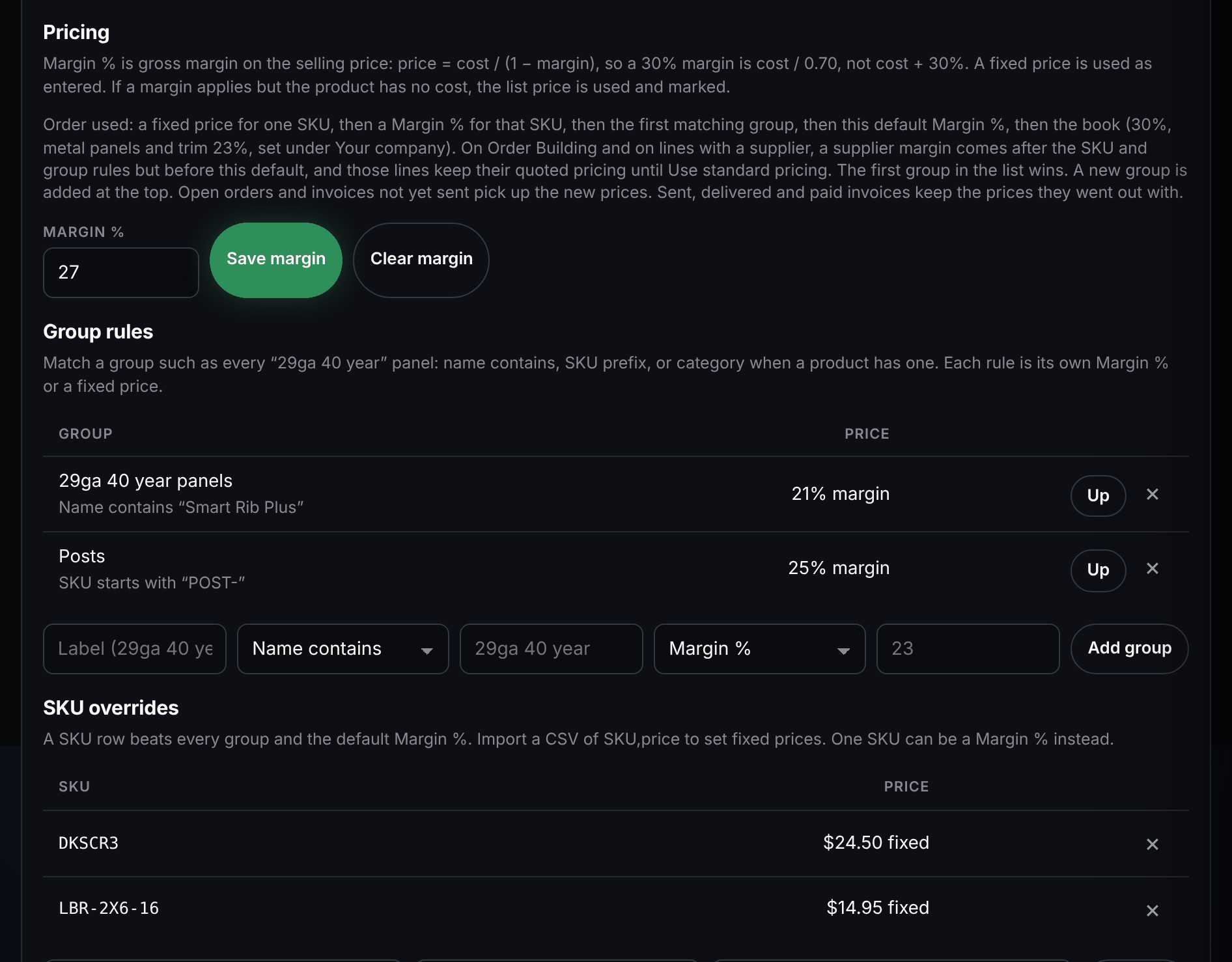
  • Each customer can have a default margin, group rules (name contains, SKU prefix, category) and fixed prices by SKU, pasted in from a spreadsheet. With no rule, your book applies: each product’s list price, or a margin on cost.
  • Price levels: one price list many customers share, such as Contractor or Dealer. Put a customer on it in one pick; their own rules come first and the level prices the rest.
  • Prices lock once an invoice is emailed or marked sent, delivered or picked up, or paid, so a later price-list or cost change doesn’t rewrite what a customer was billed.
See a Pole Barn Pro job from import to profit →
A contractor’s price list in Settings: a 27% default margin, group rules for 29ga 40 year panels and posts, and fixed prices for two SKUs.
A contractor’s price list in the demo: default margin, group rules, fixed SKU prices.

Profit & analytics

What you sold, and what you made on it

Pick a day, week, month, quarter or year; every chart and table uses the same range.

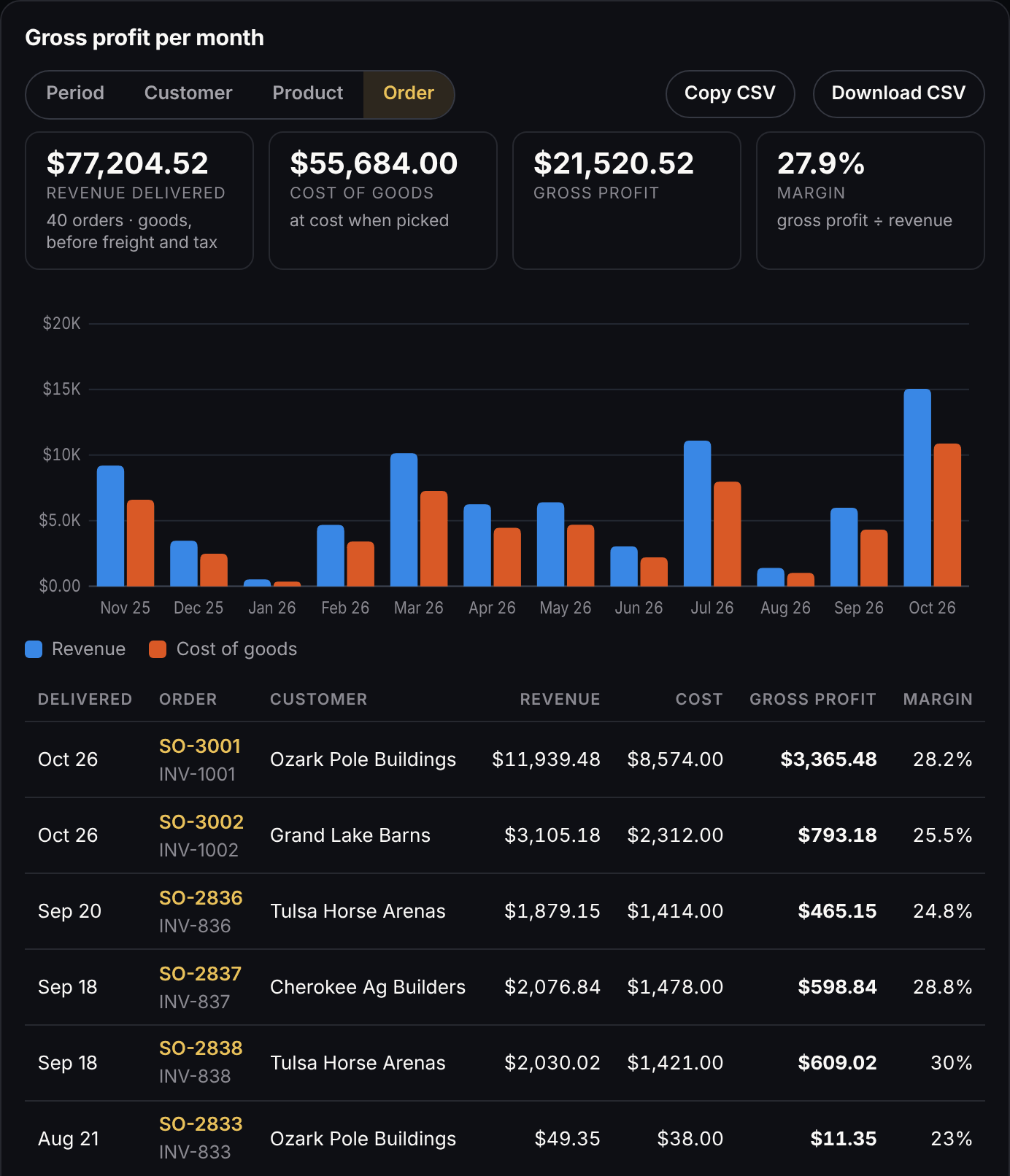
  • Gross profit per period, customer, product or order, at the cost each line left the shelf at, as a table you can copy or download as CSV.
  • Amount sold per period, with the orders for delivery and for pickup and the goods, freight and tax.
  • Trucks in and orders out, inventory value right now at cost and at sale price, losses logged, and sales tax by state, each one a CSV away.
  • Receivables by age and the summary email keep the money side in view; the accounting export hands the period to your bookkeeper.
Gross profit by order in Analytics: revenue delivered, cost of goods, gross profit and margin, a monthly chart, and each delivered order with its profit.
Gross profit by order in the demo.

Import from a spreadsheet

Bring your lists in from a spreadsheet

Products, customers and suppliers come in from a CSV file or cells pasted from Excel or Google Sheets. Nothing is saved until you have seen what it will do.

  • The preview lists every row it will add, update (each field’s old and new value) or skip, with the reason in plain words, and counts the rows with no change.
  • Common column names are recognised, QuickBooks’ among them: Item, Description, UOM, Avg Cost, Qty On Hand, Preferred Vendor, Terms.
  • Prices with $ and commas, terms such as Net 30 or 2% 10 Net 30, lead times such as 5-7 days, and Excel’s own CSV files read as they are.
  • New products start at the file’s on-hand count; existing counts change only if you tick the box. Up to 5,000 rows at a time, each checked again when it’s saved.
LineSKUPreview
5—Skipped Missing SKU.
2MTL-29-GAL-20New
3LBR-2X4X8Update Cost $3.20 → $3.35

1 new · 1 to update · 1 unchanged · 1 with problems, skipped

Photos, BOLs & job files

The whole job, on file

Every inbound truck and every order keeps its own photos and documents. When it closes, it becomes a job file you can open and print years later.

  • Camera, upload or drag-and-drop; captions and tags (damage, packing slip, proof of delivery, BOL).
  • Bills of lading generated from the order with shipper, consignee, carrier, lines and signature blocks.
  • Printable job file: summary, lines, photos, documents, BOL, notes, timeline, invoice.
  • Works on a phone at the dock.

Team & roles

Seats per company, roles per person

Admins manage their team under Settings. Stackz sets up each company or location as its own workspace with its own admins and seat limit; one person can hold a seat at several.

  • Roles: Admin, Manager, Warehouse, Sales, Billing, Driver, Viewer. A driver sees today’s stops and no prices.
  • Read-only areas lock the drawer and refuse drags, edits and uploads.
  • Each company has its own data, branding (logo and colours) and settings: tax rate, delivery fee, company profile.
  • Sample data for a fast start; clear it when you’re live.
MemberRole
OwnerAdmin
Counter salesSales
Back room leadWarehouse

Try it with your own product list.

The live demo is one click away; a walkthrough with your data is one email.